
Blog/June 8, 2026
Top Data Management Tools for Photo Booth Owners
Compare cloud storage, NAS, backup software, and gallery platforms to protect and deliver event photos efficiently.
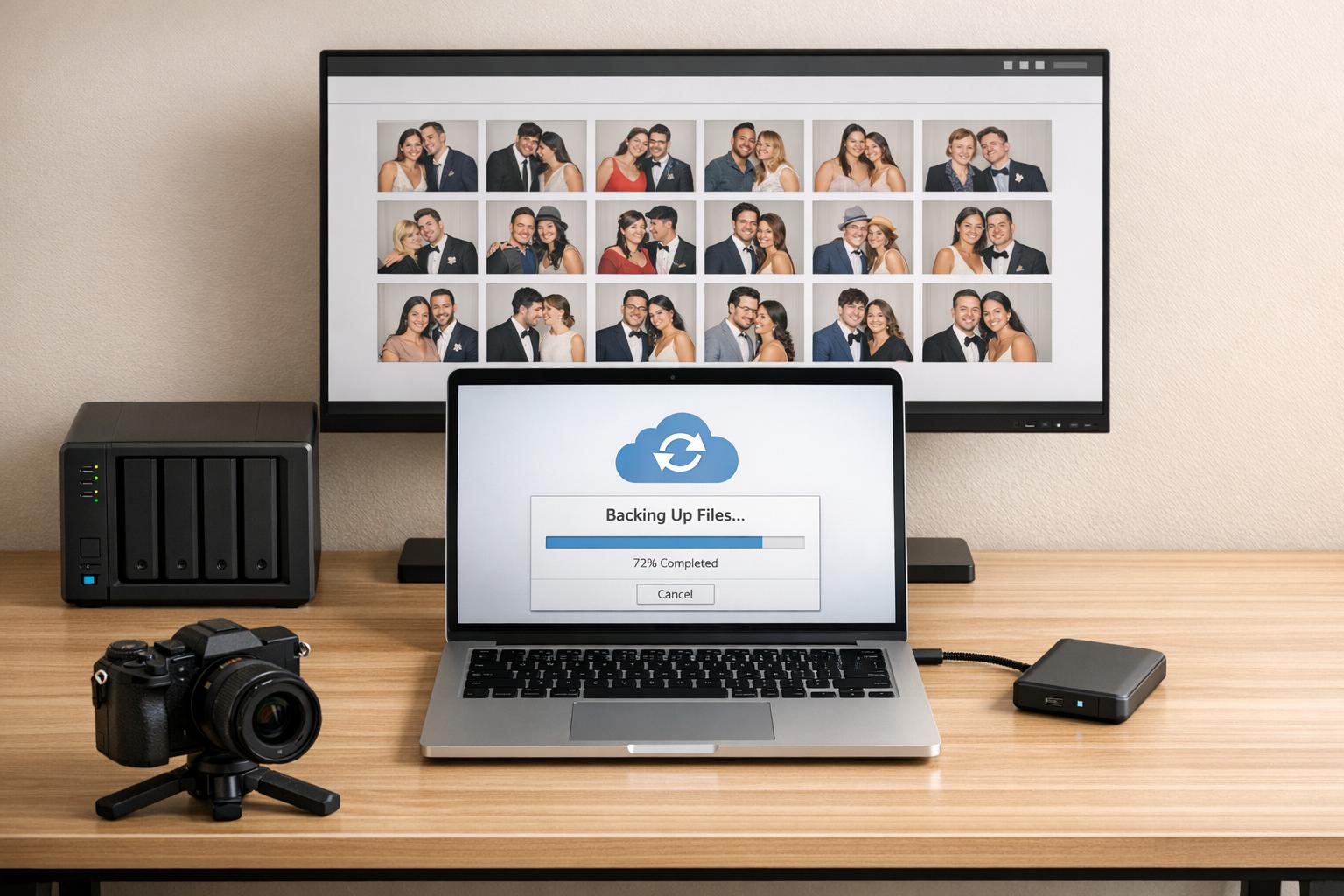
Managing event data efficiently is essential for photo booth owners. For those just starting a photo booth business, establishing these workflows early is key. From storing photos to delivering galleries, the right tools can save time, protect files, and keep clients happy. This guide covers the best options, including cloud storage platforms, backup solutions, and gallery delivery systems.
Key Takeaways:
- Google Drive offers folder organization, shared drives, and strong security. Plans start at $7/user/month.
- Dropbox integrates well with the best photo booth software and supports automatic folder organization. Pricing begins at $9.99/month.
- Microsoft OneDrive provides seamless Windows integration and extra security features like Personal Vault. Business plans start at $6/user/month.
- Amazon S3 is a scalable, cost-effective option for long-term storage with features like lifecycle policies.
- NAS Systems combine local speed with cloud backup for reliable and fast file access.
- Backup Software like Acronis and PicBackMan automates syncing and protects against data loss.
- Gallery Platforms such as Photobee.ai and Pictor enhance client delivery with AI search and branded galleries.
Quick Comparison:
Tool
Best For
Starting Price (USD)
Google Drive
General storage & collaboration
$7/user/month
Dropbox
Auto-sync with booth software
$9.99/month
Microsoft OneDrive
Windows users, added security
$6/user/month
Amazon S3
Scalable, long-term storage
~$0.023/GB/month
NAS Systems
Local speed, cloud backup
~$250+ (hardware)
Backup Software
Automated syncing, security
$29.99+ (one-time)
Gallery Platforms
Branded client delivery
$3.99+/event
Each tool offers unique benefits tailored to different business needs. Whether you’re a solo operator or managing multiple booths, these solutions can simplify your workflow and safeguard your data.
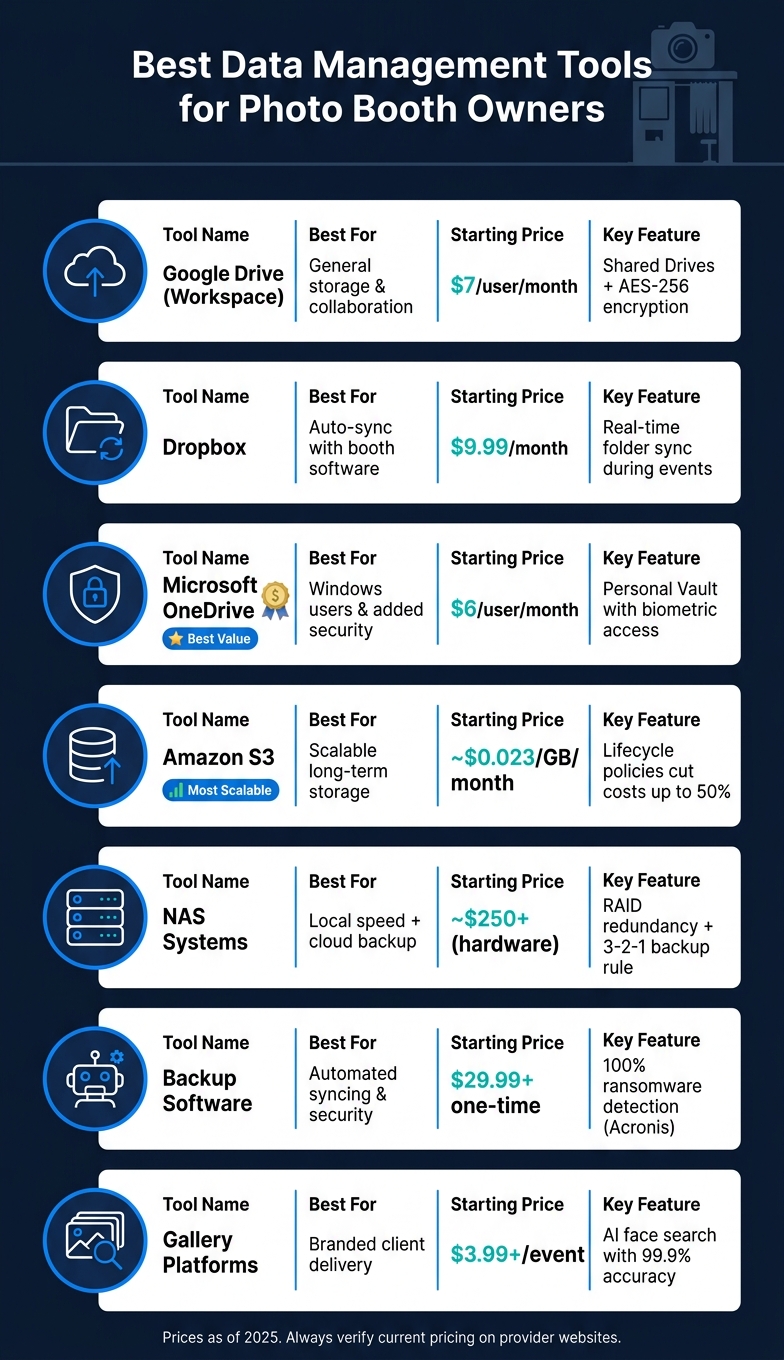
Best Data Management Tools for Photo Booth Owners: Side-by-Side Comparison
1. Google Drive with Workspace
Google Drive is a dependable and easy-to-use cloud storage solution, making it a great choice for photo booth owners. When combined with Google Workspace, it offers enhanced collaboration tools, shared storage options, and enterprise-level security, all within the familiar Drive interface. This combination fits seamlessly into event workflows, streamlining operations. For those just beginning, these tips for starting your own photo booth business can help you set up your digital infrastructure correctly from day one.
For organizing events, a practical tip is to create a dedicated folder for each booking. Within that folder, you can add subfolders like “Raw Photos”, “Edited Deliverables”, and “Contracts.” With Drive for Desktop (available for both Windows and macOS), you can access these cloud folders directly from your file explorer, which helps save space on your local drive. Need to locate specific files quickly? Use search operators like type:image or after:2020-01-01 to find event media in seconds.
Shared Drives are particularly useful for collaborating with contractors or second shooters. Unlike personal drives, files stored in Shared Drives are owned by the organization, ensuring they remain secure even if an account is removed. These files are encrypted using AES-256-bit encryption, both in transit and at rest, and benefit from AI-driven ransomware detection with real-time scanning.
Taylor Kavanaugh, the Co-founder and Executive Producer of Blue Ox Films, highlighted how Workspace has boosted their efficiency:
“We’ve automated our kick-off process. When we have a new project come in, within two minutes, we have all of the relevant templates duplicated in a Google Drive folder.”
This automation means that event folders, client intake templates, and overlay files can be ready to go before you even set up your equipment.
For most photo booth businesses, the Business Standard plan ($14.00 per user per month, billed annually) offers 2 TB of storage per user and includes Shared Drives. If your business handles high volumes of data, the Business Plus plan ($22.00 per user per month, billed annually) provides 5 TB per user along with access to Google Vault.
Plan
Storage
Shared Drives
Price (Annual)
Best For
Business Starter
30 GB/user
No
$7.00/user per month
Solo admin/contracts only
Business Standard
2 TB/user
Yes
$14.00/user per month
Most photo booth businesses
Business Plus
5 TB/user
Yes
$22.00/user per month
High-volume video/360 booths
Enterprise
5 TB+
Yes
Custom pricing
Large multi-operator setups
2. Dropbox
Dropbox, much like Google Drive, offers smooth cloud integration that’s perfect for managing photo booth operations. It works seamlessly with popular booth software, automatically uploading photos, GIFs, and videos to the cloud in real-time during events. This means even if your booth laptop crashes mid-event, your files are safely stored and accessible.
One standout feature of Dropbox is its automatic folder organization. For instance, Simple Booth creates a structured hierarchy, organizing files into subfolders like “Layouts”, “GIFs”, and “Individual Images.” Similarly, Fiesta generates folders based on the event ID and name, such as Dropbox/Apps/PBSCO_Fiesta/. It’s important to avoid renaming or moving these auto-generated folders, as doing so can disrupt the sync process.
“Dropbox is especially useful if you want to reprint layouts, since it preserves your formatting settings in special ‘formatted sheet’ files.” – Emily Devlin, Simple Booth Help Center
To optimize storage, you can use Selective Sync (or “online-only” mode). This feature allows you to keep current event files on your device while storing older folders online, freeing up disk space.
Dropbox also offers a variety of paid plans to suit different needs:
Plan
Price (USD)
Storage
File Recovery
Best For
Basic
Free
2 GB
Limited
Testing the integration
Plus
$9.99/month
2 TB
30 days
Solo operators
Standard
$15/user/month
3 TB+
180 days
Small teams (3+ users)
Advanced
$24/user/month
15 TB+
1 year
High-volume multi-operator setups
Before selecting a plan, it’s essential to confirm that your photo booth software supports Dropbox integration. For example, Simple Booth requires at least the Core tier, while Fiesta needs the Pro tier, which is priced at $119/month.
3. Microsoft OneDrive with Microsoft 365
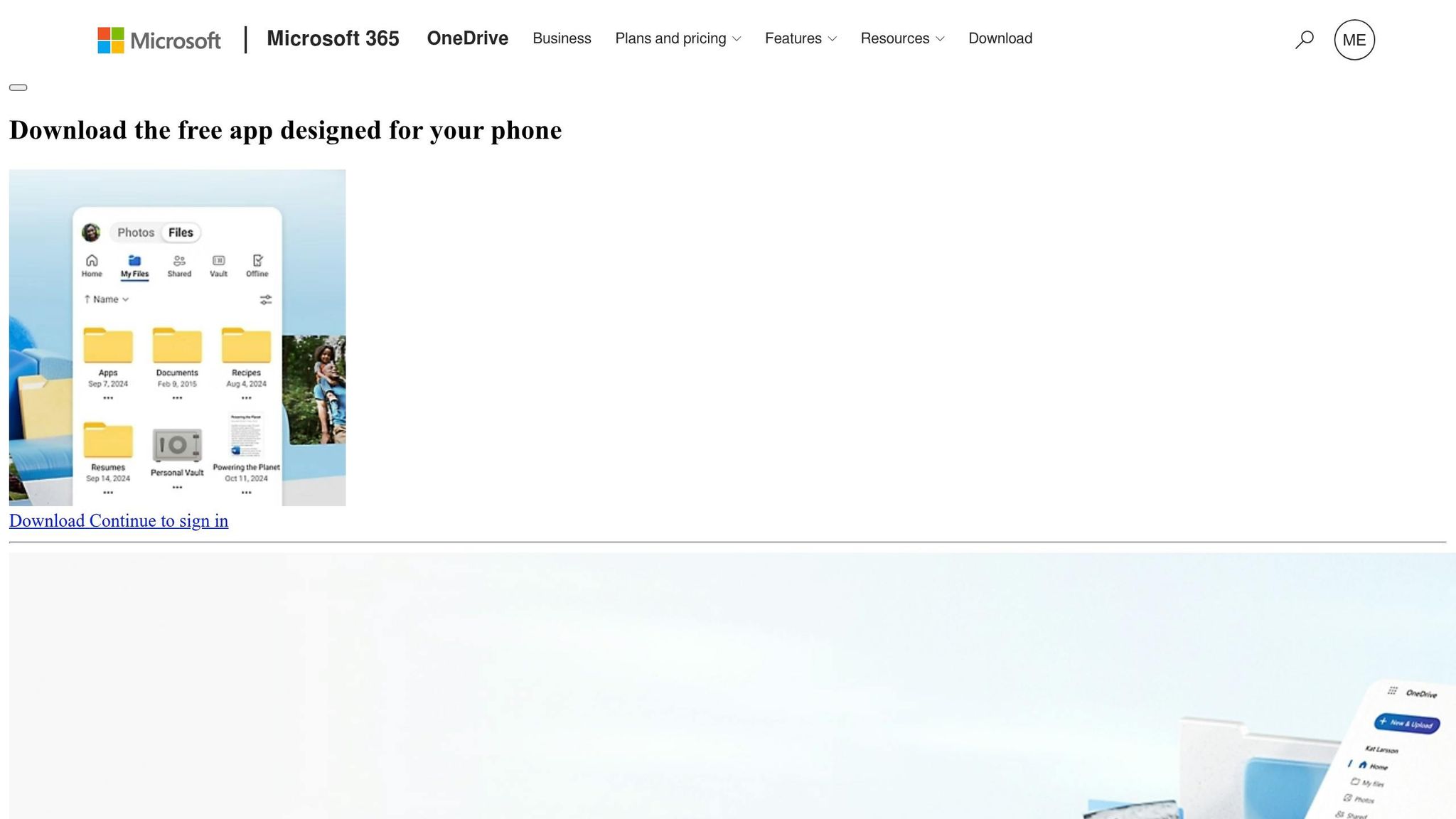
Microsoft OneDrive, built right into Windows, makes file management a breeze for photo booth operators. It shows up in File Explorer like any other folder, so there’s no setup hassle or steep learning curve. You can handle your event photos and client files just as you would any other folder, with the added bonus of automatic cloud syncing.
One of its standout features, Files On-Demand, lets you browse your entire cloud library without downloading everything. Need specific files offline? Just right-click the folder and select “Always keep on this device” – a lifesaver if you’re dealing with spotty Wi-Fi during events.
For extra security, the Personal Vault safeguards sensitive files with biometric verification or two-factor authentication. This makes it a great spot to store signed contracts, business licenses, and insurance documents, keeping them separate from your general photo library. This level of organization is key to growing your rental business efficiently. On top of that, OneDrive includes ransomware detection. It monitors for unusual mass file changes and allows you to restore your drive to a pre-attack state if needed.
“Personal Vault allowed us to separate passports and contracts into a protected folder with biometric verification. This is functionality that Google’s service doesn’t have.” – Denis Turniski, Founder & Editor-in-Chief, Match VS
Here’s a breakdown of OneDrive’s current plans to help you choose what fits your needs:
Plan
Price (USD)
Storage
Best For
Microsoft 365 Basic
$1.99/month
100 GB
Low-volume solo owners
Microsoft 365 Personal
$9.99/month
1 TB
Single-operator businesses
Microsoft 365 Family
$12.99/month
6 TB (1 TB/person)
Small teams or family-run businesses
Business Basic
$6.00/user/month
1 TB/user
Teams needing email and Microsoft Teams
Business Standard
$12.50/user/month
1 TB/user
Teams needing full desktop Office apps
A heads-up: Microsoft plans to raise prices for business plans starting July 1, 2026. Business Basic will go up to $7/user/month, and Business Standard will rise to $14/user/month. If you’re leaning toward a business plan, locking in before the increase could save you some cash.
With its robust features and adaptable pricing, OneDrive is a solid tool for managing event data efficiently.
4. Amazon S3 with Desktop Backup Tools
Amazon S3 (Simple Storage Service) is a flexible, pay-as-you-go cloud storage option that works perfectly for photo booth owners who need complete control over their file storage and organization. Unlike flat-rate plans, you’re charged based on what you actually use – this includes storage volume, data requests, and outbound transfers. Pairing S3 with desktop backup tools makes the process even smoother by automating file synchronization.
The magic happens when you combine S3 with backup tools like Rclone, Arq, MSP360, or Duplicati. These tools can automatically transfer new files from your local event folders to specific S3 buckets. You can create organized folder structures using Bucket Path Prefixes – for example, events/2026/wedding-smith/ – so every event is neatly arranged from the start. To keep things secure, Access Control Lists (ACLs) allow you to keep high-resolution originals private while making lower-resolution versions available for guest downloads.
This setup not only simplifies file management but also boosts data security. Following the 3-2-1 rule makes data redundancy straightforward: one copy stays on your booth or local drive, a second on a local backup, and a third in S3 for off-site protection. For added ransomware protection, MSP360 supports S3 Object Lock, which ensures your backups are immutable – meaning they can’t be altered or deleted, even if your system is compromised.
“Object lock is currently the highest level of backup protection possible. Immutable data backups are not prone to ransomware, unattended access, or human factors.” – MSP360
One standout feature of S3 is its Lifecycle policies, which can help significantly cut costs. For photo booth professionals dealing with large amounts of event data, these policies automatically move files to lower-cost storage tiers over time. For instance, you can set rules to transition files from S3 Standard ($23/TB per month) to S3 Glacier Instant Retrieval after 30 days, and then to S3 Glacier Deep Archive ($1/TB per month) after 90 days – all while keeping them accessible when needed. A real-world example? Photobox applied these policies to a 10-petabyte photo library and reduced their AWS storage expenses by 50%.
S3 Storage Class
Cost (per TB/mo)
Retrieval Speed
Best Use Case
S3 Standard
~$23
Milliseconds
Active events, frequent guest downloads
S3 Glacier Instant Retrieval
~$4–$5 (est.)
Milliseconds
Past-season events, occasional access
S3 Glacier Deep Archive
~$1
12–48 hours
Long-term archiving (3+ years old)
However, keep in mind that S3 charges egress fees – about $0.05–$0.09 per GB – when you download files. If you frequently pull older event galleries back to your local system, these fees can stack up. S3 works best for write-once, rarely accessed archives, helping you save money while maintaining data integrity.
5. Network Attached Storage with Cloud Sync
Network Attached Storage (NAS) serves as a local private server, offering fast file access while seamlessly integrating with cloud sync for automatic offsite backups. With NAS, all devices on your network can quickly retrieve stored files, making it a great complement to cloud storage by blending local speed with the security of offsite redundancy.
Where NAS truly shines is in its speed. A standard 1GbE NAS port can transfer data at about 110 MB/s. If you upgrade to a 2.5GbE port, like the one on the QNAP TS-464-8G, speeds can jump to around 280 MB/s. This makes it ideal for accessing large files, such as event folders, in record time.
NAS devices also prioritize data protection, often utilizing RAID (Redundant Array of Independent Disks). For instance, a 4-bay NAS configured with RAID 5 can handle a full single-drive failure without losing any data. However, as noted in the Rosenberry Rooms Photography Guide:
“RAID protects against drive failure but is NOT a backup – you still need separate backups.” – Rosenberry Rooms Photography Guide
To bolster protection, cloud sync applications like Synology Cloud Sync, QNAP Hybrid Backup Sync, and TerraMaster CloudSync can automatically mirror your NAS folders to cloud services such as Google Drive, OneDrive, Dropbox, or Amazon S3. This approach follows the 3-2-1 rule of data management: one original file, one local RAID backup, and one offsite cloud copy. TerraMaster even adds an extra layer of security by encrypting files locally before uploading, keeping sensitive data safe even if cloud credentials are compromised.
NAS devices are highly adaptable to different business needs. For smaller setups, entry-level 2-bay units like the Synology DS223 are priced around $250–$300 and are perfect for compact libraries. Larger operations, such as those managing multiple booths or handling high event volumes, might benefit from a 4-bay model like the Synology DS923+. Priced at approximately $900 (with drives), this model includes ECC RAM for better data integrity and optional 10GbE networking for faster performance.
NAS Tier
Example Model
Approx. Price
Best For
Entry-Level (2-Bay)
Synology DS223
~$250–$300
Smaller libraries, single booth
Mid-Range (4-Bay)
QNAP TS-464-8G
~$400–$550
Multi-booth, faster networking
Professional (4-Bay)
Synology DS923+
~$900 (with drives)
High-volume, ECC RAM, expandable
NAS systems bring both speed and reliability to data management, offering scalable options for businesses at every stage of growth. Whether you’re running a small operation or managing a high-volume workflow, there’s a NAS solution to fit your needs.
6. Dedicated Backup Software with Cloud Targets
After considering cloud storage and NAS options, dedicated backup software steps in to automate the process and seamlessly connect your local and cloud systems. While NAS systems focus on local speed and redundancy, backup software takes care of transferring your data to the cloud. It decides what to back up, where to store it, and when updates are needed – all without manual effort. This makes it a perfect partner to NAS systems, enhancing your overall data protection strategy.
One standout feature of these tools is their ability to reduce redundant uploads. Using incremental backup technology, software like Arq Backup and Backup4all ensures only new or changed files are transferred. This saves time and minimizes data usage. For example, Backup4all, priced at just $29.99, supports over 37 S3-compatible cloud targets, offering a wide range of storage options. Impressively, even NASA relies on it for data protection aboard the International Space Station.
For those focused on photo backups, PicBackMan is a great choice. It maintains your folder structure during uploads, making it easy to keep event archives organized. With over 78 million photos and 1.7 million videos backed up globally, it’s a trusted solution. A verified user, Robert, shared his experience:
“PicBackMan has saved me many tedious hours moving files between my various cloud and photo site services and my local computers.” – Robert, Verified User
The software is available for a one-time cost of $99 (discounted from $129), eliminating recurring fees.
For those prioritizing security, Acronis True Image offers ransomware protection and full disk cloning. It’s been recognized as a PCWorld Editors’ Choice and achieved a 100% detection rate for cyber threats in independent tests. Plans start at $49.99/year for the Essentials package, while the Advanced tier, which includes cloud storage, is priced at $72.99/year. Meanwhile, BigMIND 2.0 stands out for its 3-tier storage system – Hot, Cold, and Deep Freeze – which can reduce storage costs by up to 67% by shifting older files to more affordable tiers.
Software
Best For
Cloud Targets
Starting Price (USD)
PicBackMan
Photo/video-specific backups
Google Photos, Dropbox, SmugMug
$99 (Lifetime)
Arq Backup
BYOC flexibility, encryption
AWS S3, B2, Google Drive, SFTP
BYO License
Backup4all
Multi-target, plugin support
37+ S3-compatible, Azure, Box
$29.99
Acronis True Image
Security-first, full system backup
Acronis Cloud, Local, Network Share
$49.99/year
BigMIND 2.0
Large archives, AI search
Integrated AI Cloud
$10/user/month
7. Gallery and Delivery Platforms with Cloud Storage
Storing your files securely is one thing, but delivering them in a way that truly engages clients takes it to another level. Gallery and delivery platforms go beyond traditional backup systems by transforming stored files into polished, shareable experiences. Instead of sending a plain Dropbox link after an event, these tools let you create branded galleries where guests can browse, download, or even find their photos by uploading a selfie. It’s a seamless way to combine data management with client-ready presentation using the best iPad photo booth apps.
One of the most exciting developments in this space is the use of AI for photo discovery. Take Photobee.ai as an example. It stores media on AWS S3 or Google Cloud Storage and uses facial recognition with an impressive 99.9% accuracy rate – even when guests are wearing masks or sunglasses. This feature makes it incredibly easy for guests to upload a selfie and instantly locate all their photos. One operator even reported a 60% boost in print sales after adopting this AI-powered face search feature.
“The guest self-upload feature proves highly effective. Attendees contribute their own shots and everyone gets a complete event album.” – Thomas Berg, Conference Photographer
For those who prefer a simpler, folder-based setup, FotoBoof Cloud offers a direct connection to Dropbox, automatically converting your existing folders into branded client galleries – no need for manual rebuilding. Similarly, JoinMyMoment syncs event photos and videos directly to a Google Photos library, with pricing starting at just $3.99 per event for up to 25 guests. Meanwhile, Pictor focuses on ease of delivery, offering SMS and email sharing options that save operators 30–60 minutes per event. Their plans start at $49/month (billed annually) for the Basic tier, with Premium options available at $149/month.
“I used to spend ages sorting out galleries and manually uploading them to my website, now… I’m sharing the gallery via WhatsApp before even leaving the event!” – John, Photo Booth Owner
Security is another critical factor, especially for private events like weddings or corporate galas. Look for platforms that provide PIN-protected or token-protected galleries. Photobee.ai goes a step further with screenshot protection, blocking tools like PrintScreen and right-click saves. For those testing the waters, BoothHQ offers token-protected branded links and is currently free during its beta phase, making it a risk-free option for trying out gallery delivery. If you’re just starting out, consider joining a photo booth business launch challenge to master these tools quickly.
Platform
Cloud Integration
Key Feature
Starting Price (USD)
Photobee.ai
AWS S3, Google Cloud
AI Face Search
N/A
FotoBoof Cloud
Dropbox
Folder-to-gallery sync
Free (up to 5 galleries)
JoinMyMoment
Google Photos
QR code, no app needed
$3.99/event (25 guests)
Pictor
Proprietary
SMS & email delivery
$49/month
Photo Booth Cloud
Proprietary
Website widget embed
$9.99/month
BoothHQ
Global CDN
Token-protected links
Free (beta)
8. Automation Tools for File Organization and Sync
After an event, managing hundreds – or even thousands – of files can quickly become overwhelming. Renaming, sorting, and backing up files manually isn’t just time-consuming; it’s inefficient. That’s where automation tools come in. These tools handle tasks like folder monitoring, file naming, and syncing, making file management effortless. Pairing them with your cloud storage system can streamline your entire workflow.
Take PixoShare, for instance. This tool keeps an eye on your booth’s output folder, instantly detecting and syncing new photos to the cloud.
“PixoShare watches your output folder and picks up new photos instantly.” – PixoShare
For organizing and renaming files, Elodie leverages EXIF data to create a consistent folder structure. For example, it might organize files into directories like 2026-06/Chicago. According to Elodie:
“Elodie neatly organizes your entire photo (and video) library with 100% predictability so you’ll always know exactly where to look.”
But what happens when internet connectivity becomes an issue? That’s where BoothLedger shines. Its offline-first sync feature queues files for upload and processes them automatically as soon as you’re back online. Even with this offline functionality, it maintains fast print times – under 15 seconds.
For those handling large volumes of files, Photobee.ai simplifies uploads with FTP camera tethering and one-click imports from services like Google Drive or Dropbox. This eliminates much of the manual work.
On top of these, AI-driven tools like Snaptide push efficiency even further. With a face recognition accuracy of 99.8% and an average retrieval time of just 3.6 seconds, it automatically groups photos by guest – no tagging required. Pricing starts at $10/month, with a current 50% discount for early adopters.
Tool
Primary Automation Feature
Starting Price (USD)
PixoShare
Folder watching & instant cloud sync
Contact for pricing
Elodie
EXIF-based renaming & folder sorting
Free (open-source)
BoothLedger
Offline queue & auto cloud sync
Contact for pricing
Photobee.ai
FTP tethering & Drive/Dropbox import
~$12/month
Snaptide
AI face recognition & auto-grouping
From $10/month
Comparison Table
The table below outlines key features of various data management tools tailored for photo booth owners. It compares aspects like cloud integration, organization capabilities, data protection, scalability, and pricing.
Tool
Cloud Integration
Organization Features
Data Protection
Scalability
Starting Price (USD)
Google Drive with Workspace
Google Cloud native
Shared drives, folder hierarchy
2FA, admin controls
Up to 5TB+ (Business plans)
$7/user/mo
Dropbox
Dropbox Cloud
Smart Sync, folder structure
2FA, version history
Up to 15TB (Business+)
$15/user/mo
Microsoft OneDrive with 365
Azure Cloud
SharePoint integration, tagging
2FA, ransomware recovery
Up to 1TB–unlimited
$6/user/mo
Amazon S3 with Backup Tools
AWS multi-region
Bucket/prefix structure
Versioning, lifecycle policies
Scalable
~$0.023/GB/mo
NAS with Cloud Sync
Hybrid (local + cloud)
Custom folder rules
RAID redundancy, offsite sync
Expandable hardware
Costs vary
Photobee.ai
AWS S3 + Google Cloud
AI face recognition, auto-grouping
Redundant geo-storage, PIN galleries
Up to 2TB (Studio plan)
Free / ~$12/mo
Dropbox, Google Drive, Box
AI tagging (90% accuracy), smart collections
2FA, AWS redundant storage
Unlimited users, up to 10TB+
Free / $99/mo
PixoShare
Proprietary cloud
Folder watching, microsites
Delivery analytics, real-time tracking
Multi-iPad support
Free trial
BoothLedger
BoothLedger Cloud
Multi-booth sync, unified archive
Offline-first queue, auto-sync
Across multiple devices
Contact for pricing
Snaptide
Direct upload
AI face recognition (99.8% accuracy)
Cold storage, private albums
Up to 10TB+ active storage
Free / $10/mo
Dropbox, API/SSO
AI search, face recognition
SOC 2 Type II, audit logs
Unlimited users, up to 5TB+
Free / $99/mo
For those on a tight budget, free tiers from Snaptide (1GB), Stockpress (3GB), and Razuna (500GB for up to 5 users) provide an affordable way to start organizing files without upfront costs. On the other hand, operators handling large-scale events or managing multiple booths may find Razuna and Stockpress better suited, as both offer unlimited user access and storage options exceeding 10TB.
When it comes to data security, Razuna’s SOC 2 Type II compliance and Photobee.ai’s redundant geo-storage offer robust safeguards. For offline reliability, BoothLedger’s offline-first design ensures uninterrupted access, even without internet. Meanwhile, tools like Snaptide and Stockpress shine in automation – Snaptide’s 3.6-second photo retrieval and Stockpress’s 90% AI tagging accuracy are particularly helpful for managing thousands of event files efficiently, ensuring quick and reliable client access.
This comparison underscores how these tools can simplify data management for photo booth operators, leveraging cloud-based solutions to enhance workflows and meet client expectations.
Conclusion
Choosing the right data management tool can transform your workflow. Whether it’s implementing a 3-2-1 backup strategy or instantly sharing photos through QR codes or SMS, these tools free you up to focus on delivering exceptional events. Stacey Deeley from Jellybean Photobooth explains it best:
“Reliability is everything. If one fails, the other carries on without an issue. It’s like having a spare brain constantly backing you up.”
The tools highlighted above combine cloud storage, automation, and security to meet a variety of needs.
Your choice will depend largely on your specific setup. Whether you are transitioning your photo booth side hustle or managing a multi-booth business, your choice will depend largely on your specific setup. Many platforms offer free trials or entry-level plans, giving you a chance to test features without a big upfront investment. For high-volume operations, prioritize tools offering features like AI-powered search, real-time analytics, and extensive storage to ensure smooth, efficient workflows. Implementing these systems is a key step in maximizing the profit of your photo booth business.
Automation can make a big difference. Tools with folder-watching and auto-sync capabilities eliminate repetitive tasks like manual file transfers after events. Combine this with cloud redundancy, and you’ll have a system that not only saves time but also protects client memories long after the event concludes.
FAQs
What’s the simplest 3-2-1 backup setup for a single booth?
The 3-2-1 backup rule is straightforward but effective: keep three copies of your data. Start with the primary copy on your laptop or desktop, add a second copy on a local external drive, and store a third in a secure cloud storage service. This approach protects your data from hardware failures and even local disasters. To take it a step further, choose cloud services that offer automated syncing or versioning – these features can save you from accidental deletions or overwrites.
How much internet speed do I need for real-time cloud uploads at events?
For real-time cloud uploads, you’ll need an upload speed of at least 2 Mbps to handle basic tasks. However, if you’re dealing with high-resolution images, videos, or GIFs, it’s better to aim for speeds between 5–10 Mbps for smoother performance. Since venue Wi-Fi can often be unpredictable, a dedicated mobile hotspot is a reliable way to keep your Photo Booth International system connected, ensuring instant digital sharing during events.
How can I share galleries securely without guests downloading originals?
To share photo galleries securely while avoiding downloads of original files, choose platforms that offer detailed permission controls. Features like disabling downloads for particular collections, requiring a download PIN, or restricting access to lower-resolution files (like small or medium sizes) can help. These options let your guests enjoy viewing their photos while keeping high-resolution originals out of reach, ensuring you maintain full control over file access.